Desktop apps: Legaia Studio and the native port
Every release ships two programs you can start with a double-click: Legaia Studio, a desktop app for browsing, previewing and exporting everything on your Legend of Legaia disc, and the native port, the game itself running on the project's from-scratch engine. Both come in one download, both read the disc image you already own, and neither needs a terminal. This page covers downloading them, the first start on each operating system, and how to use each one.
At a glance
- DownloadOne archive for your system from the Releases page.
- UnpackExtract the archive to a folder of its own; keep the files together.
- StartLegaia Studio to explore the disc, Legend of Legaia to play.
- Pick your disc onceYour USA
.bin(or.cue). Both programs remember it.
The download contains only the project's own compiled programs: no game data. Both apps read a disc image you supply - a raw Mode 2/2352 .bin dump of your own Legend of Legaia (USA) disc, SCUS-94254, or the .cue sheet beside it. They read it on your computer and write only into folders you choose; nothing is sent anywhere.
The two pages these programs grew out of go further: Extracting assets has the command-line route for every asset type, and Playing and viewing has every option of the port. Prefer no install at all? The same engine runs in the browser on the play page.
1 · Download
Open the Releases page, take the newest release, and under Assets download the archive for your system:
| Your system | Archive |
|---|---|
| Windows 10 / 11 (64-bit) | legaia-tools-<version>-x86_64-pc-windows-gnu.zip |
| macOS 11 or newer (Apple silicon or Intel) | legaia-tools-<version>-universal-apple-darwin.tar.gz |
| Linux on a PC (x86_64, glibc 2.28+) | legaia-tools-<version>-x86_64-unknown-linux-gnu.tar.gz |
| Linux on ARM (aarch64) | legaia-tools-<version>-aarch64-unknown-linux-gnu.tar.gz |
Every archive holds both apps, the command-line tools, the licenses, and two short text files: README-PLAY.txt (how to start the game, the controls) and README.txt (every program in the folder). To check a download was not damaged, fetch SHA256SUMS from the same release and run sha256sum -c SHA256SUMS --ignore-missing (shasum -a 256 -c ... on a Mac).
2 · Unpack and start for the first time
Each archive unpacks into a single folder named after it. Keep everything in that folder together: the game's launcher and Studio's Play button both look for legaia-engine right beside them.
Windows
- Right-click the
.zipand choose Extract All.... Do not run the programs from inside the zip window - Windows then unpacks one file at a time, and the game's launcher cannot find the engine beside it. - In the extracted folder, double-click
legaia-studio.exefor Studio, orLegend of Legaia.exeto play.
"Windows protected your PC"
The programs are not code-signed, so Microsoft Defender SmartScreen may stop the first start of a program it has not seen before. Click More info, then Run anyway. It asks once per program.
Legend of Legaia.exe is a small starter that runs legaia-engine.exe without a console window; legaia-engine.exe itself is the same game plus every command-line option, and is the one to run from a command prompt.
macOS
- Double-click the
.tar.gzin Finder to unpack it. - In the folder, open
Legaia Studio.appfor Studio, orLegend of Legaia.appto play.
"Apple could not verify..." (Gatekeeper)
The two apps are signed ad hoc but not notarised by Apple, so the first open is refused. Right-click (or Control-click) the app and choose Open, then Open again; on recent macOS versions, try to open it once, then go to System Settings > Privacy & Security and click Open Anyway. Each app asks once. If macOS instead says the app "is damaged", clear the download quarantine flag from a Terminal in that folder:
xattr -dr com.apple.quarantine "Legend of Legaia.app" "Legaia Studio.app"Linux
tar -xzf legaia-tools-<version>-x86_64-unknown-linux-gnu.tar.gzThen start ./legaia-studio or ./legaia-engine from the new folder, or double-click either in your file manager. The game needs ALSA (libasound.so.2) for sound and udev for gamepads, and Studio needs OpenGL; every mainstream desktop distribution already has all three.
3 · Legaia Studio
Studio is the friendly front end to the project's asset tools: everything the command-line extractors do for a single texture, model, sound or line of dialog is a button here, and the whole-disc extraction is a tab with a progress bar.
Open your disc
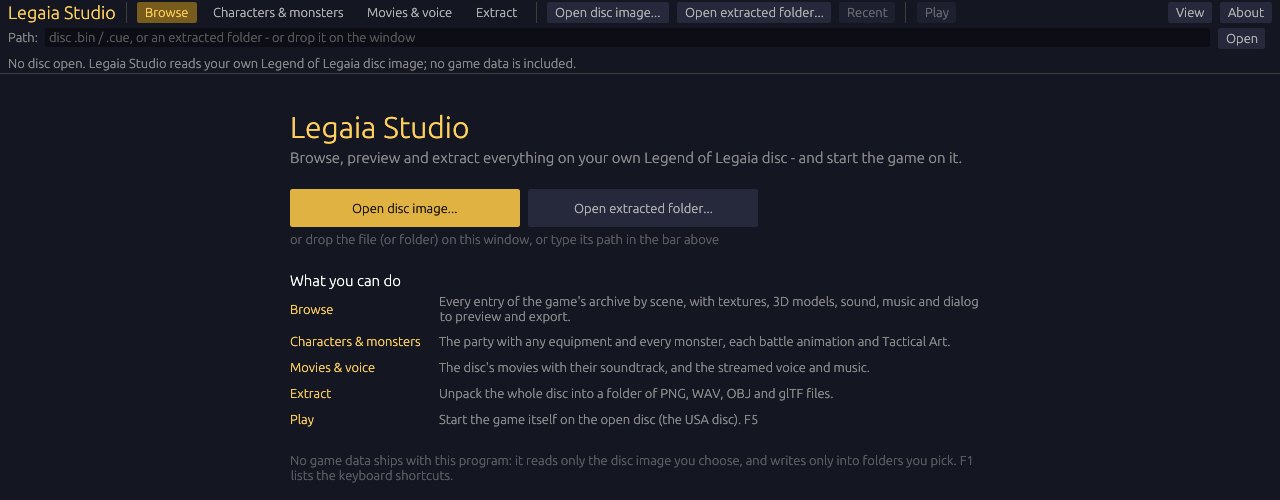
Click the gold Open disc image... button (Ctrl+O), drop the .bin or .cue onto the window, or type its path. A folder that legaia-extract already wrote opens too, with Open extracted folder.... Studio checks the image before loading it and reopens the last one at the next start; if the file is not a disc image, a red banner says why, with Copy for a bug report. The x beside a recent entry takes it off the list, and an entry whose file has been moved or deleted drops off by itself.
Browse and search the archive
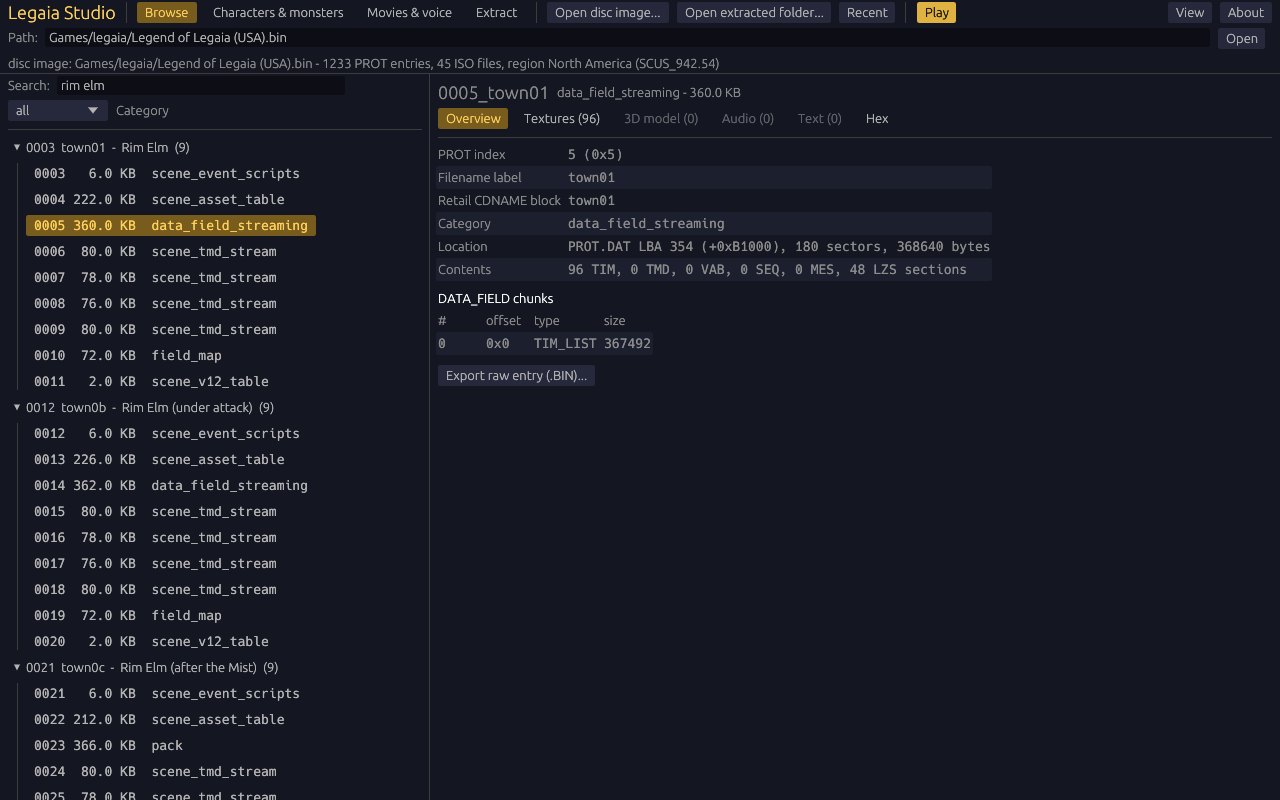
rim elm keeps just the Rim Elm scenes, town tmd the town meshes.The left panel is the game's main archive (PROT.DAT), grouped by the name each block carries on the disc and by the place a scene is (town01 - Rim Elm). Each entry shows what kind of data it holds and its size. The search (Ctrl+F, Esc or its x clears it) matches the block name, the place name, the kind of data and the entry number, and says how many entries match; the category menu narrows the list further, Show all drops both, and the arrow keys, Page Up / Page Down, Home and End walk it. Disc files at the bottom lists the disc's own file system, each file with a save button.
Preview and export
The tabs above the preview show what the selected entry holds:
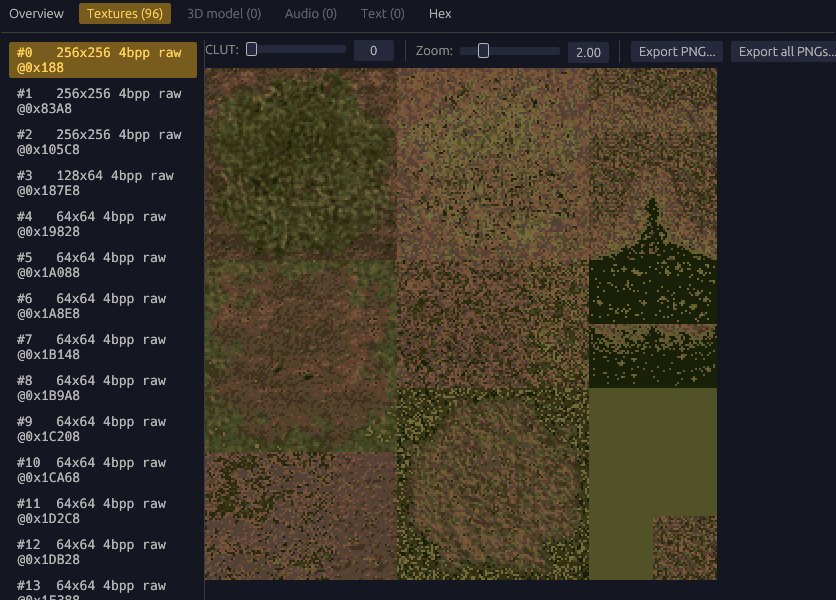
- Textures - a palette slider and zoom. Many textures carry several palettes, and the wrong row looks like static, so try a few before deciding one is broken. Export one image or all of them as PNG.
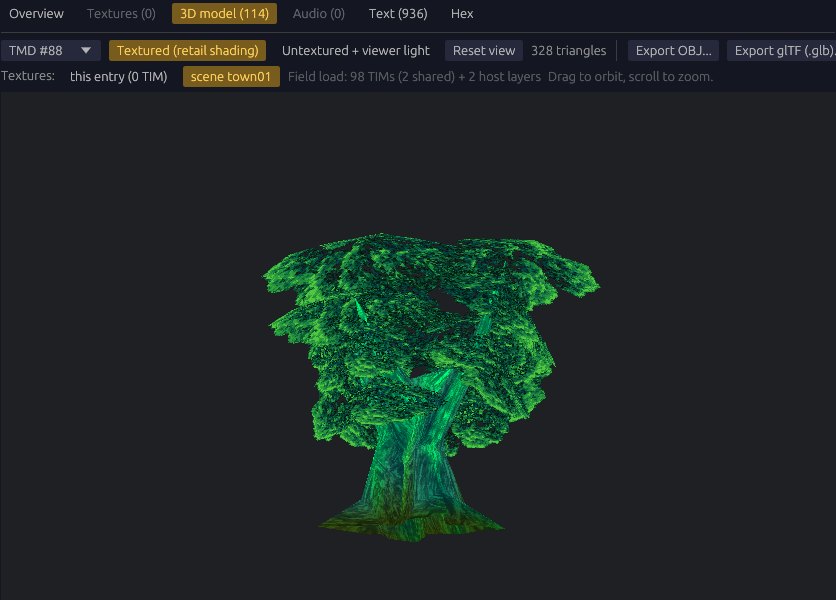
- 3D model - the game's own shading, or untextured under a viewer light. Most scene meshes borrow textures another entry of their scene loads, which the scene option resolves. Export as OBJ or as a textured glTF (
.glb) that Blender opens directly. - Audio - play the samples of a sound bank one by one, or a music sequence through a chosen bank; export WAV.
- Text - a scene's dialog and other messages, with the accented letters of the French, German and Italian discs; export as text.
- Hex and Overview - the raw bytes, where the entry sits on the disc, and a raw
.BINexport.
After an export, Show folder on the status line opens the folder it went to.
Characters & monsters
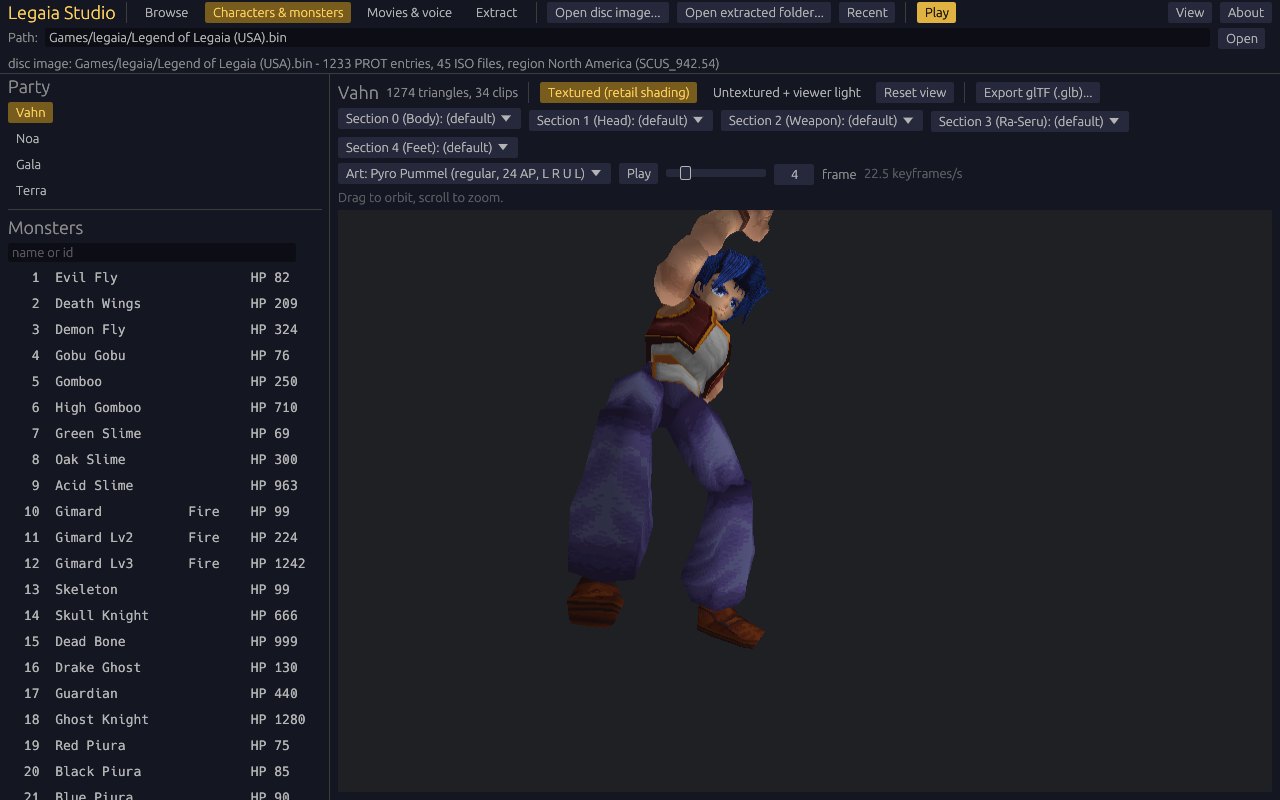
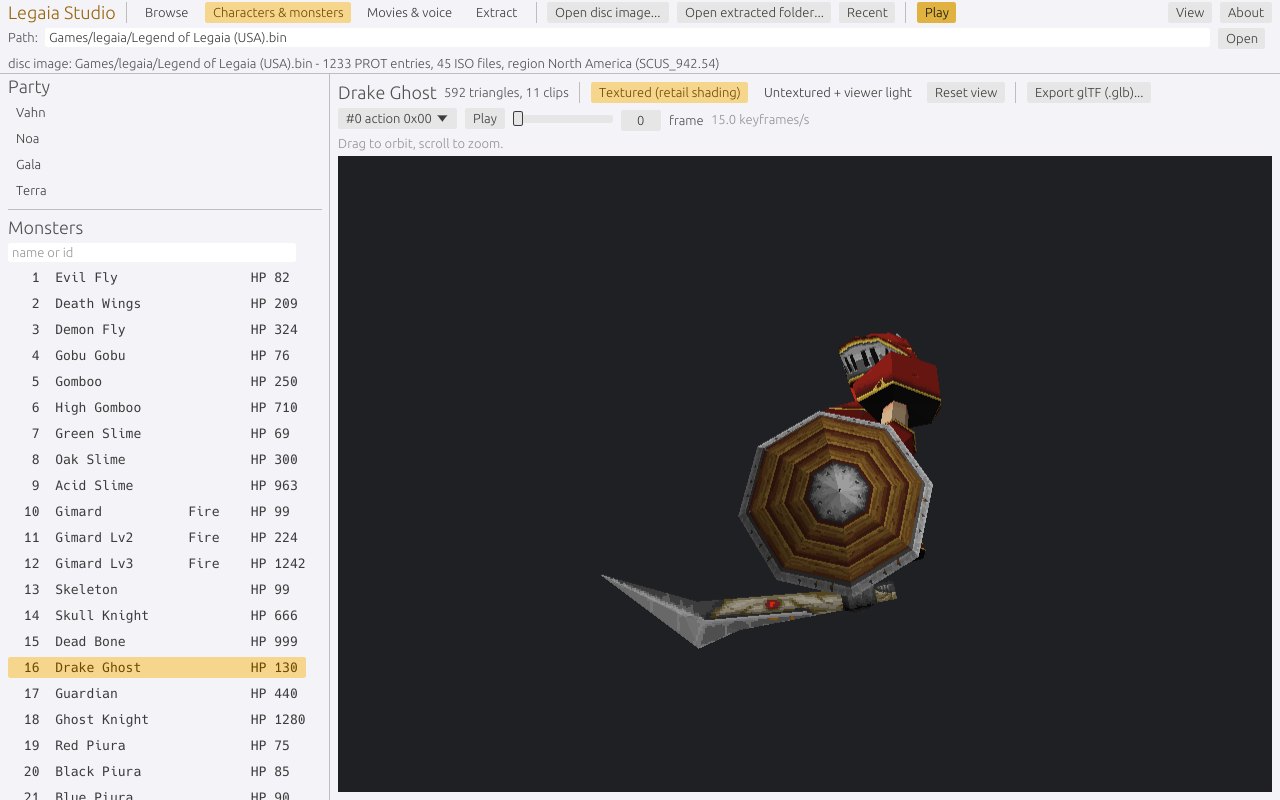
Pick a party member to see the battle model built from the equipment you choose, or a monster from the list (Gimard Lv2, with its element badge). Every battle animation plays at game speed or steps a frame at a time; for Vahn, Noa and Gala the list includes every Tactical Art by name. Export glTF writes the animated model.
Movies & voice
The disc's movies play with their soundtrack, or step frame by frame with PNG export of any frame. The streamed CD-XA audio (voices, some music) is listed file by file and channel by channel, each playable and exportable as WAV. These read raw CD sectors, so they need the disc image rather than an extracted folder.
Extract the whole disc
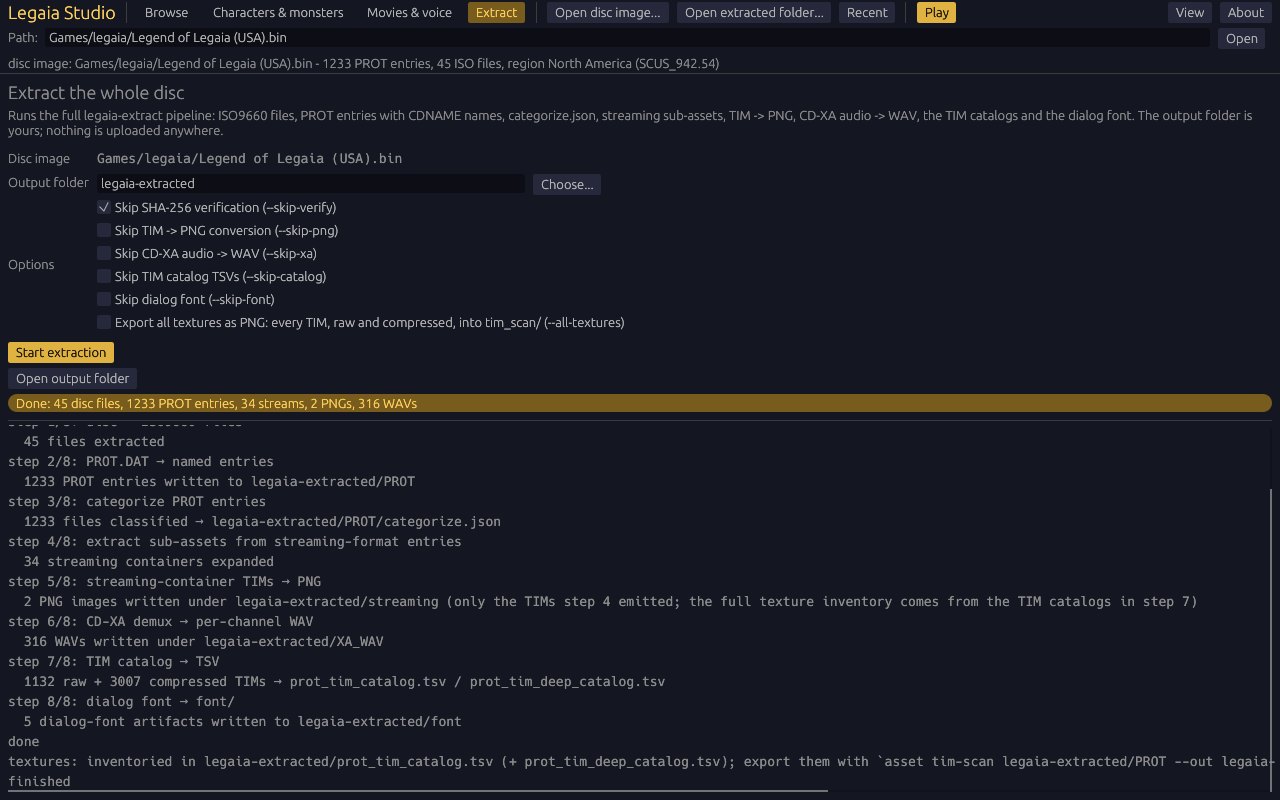
legaia-extract command line produces.Choose an output folder (Studio proposes one beside the disc image), tick any steps to skip, and start; a note under the folder warns when it already holds files. The tab shows the step, the time so far and, once a step has a steady rate, about how long it has left; the log can be cut down to its warnings, the run can be cancelled, and Open output folder is there whenever the folder exists. The run goes on while you browse, and its end (or its error) shows on the status line of whatever view is open. Tick Export all textures as PNG to also get every texture on the disc as a PNG. What the folder holds is described in Getting started.
Play, and the rest of the window
Play - the gold button in the top bar, or F5 - starts the game on the open disc, at the title screen. Saves, key bindings and options are the same ones the game uses when you start it directly, and the disc is remembered for the game too: starting Legend of Legaia later finds it ready. The display options you set in the game's launcher (below) apply to a game started from Studio too. Play needs the USA disc image and legaia-engine in the same folder; when it is greyed out, hover it to see why. If the game stops with an error, the status line shows the end of its log and where the full log is.
- Status line - a confirmation (an export written, the game started) clears itself after a few seconds; an error is a red banner that stays until Dismiss, and Copy puts its text on the clipboard for a bug report.
- Keyboard - Ctrl+1 to Ctrl+4 switch between Browse, Characters & monsters, Movies & voice and Extract; F5 plays; F1 lists every shortcut.
- View - a light or dark theme, or follow the desktop; and the zoom of the whole window, also on Ctrl+= / Ctrl+- / Ctrl+0. Both are remembered.
- About (F1) - the version, the keyboard shortcuts, and where the third-party license notices sit.
Studio remembers its window size, the view you left it on, the recent list and its folders in legaia-studio/settings.json under your configuration folder (~/.config on Linux, %APPDATA% on Windows, ~/Library/Application Support on macOS).
4 · The native port
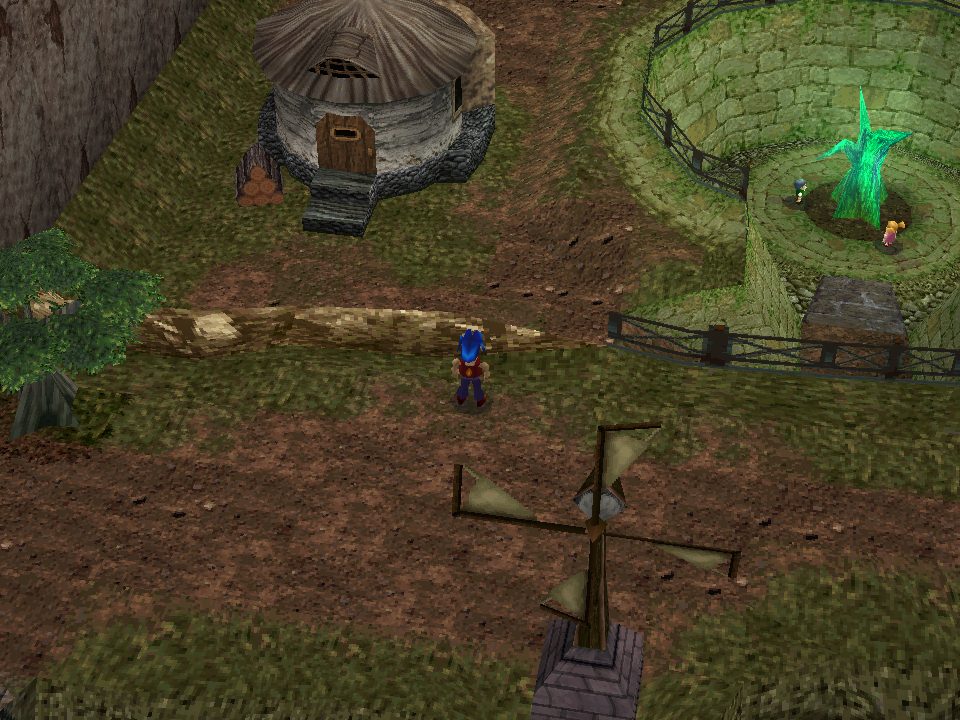
The port is Legend of Legaia from New Game to the credits on a from-scratch engine, drawn with a modern GPU renderer at any window size. It reads the game's data from your disc as it runs.
Three ways to start it
- Double-click
Legend of Legaia.exe(Windows),Legend of Legaia.app(macOS) orlegaia-engine(Linux). The launcher opens: pick your disc once, set the display options if you like, and press Play. - From Legaia Studio - Play starts it on the disc Studio has open, and remembers that disc for the double-click start.
- From a terminal - every option is a flag:
./legaia-engine play-window --disc "/path/to/Legend of Legaia (USA).bin" --boot-ui--boot-uiopens on the title screen; without it the game drops you straight into Rim Elm../legaia-engine play-window --helplists the rest, and Playing and viewing explains them.
The launcher
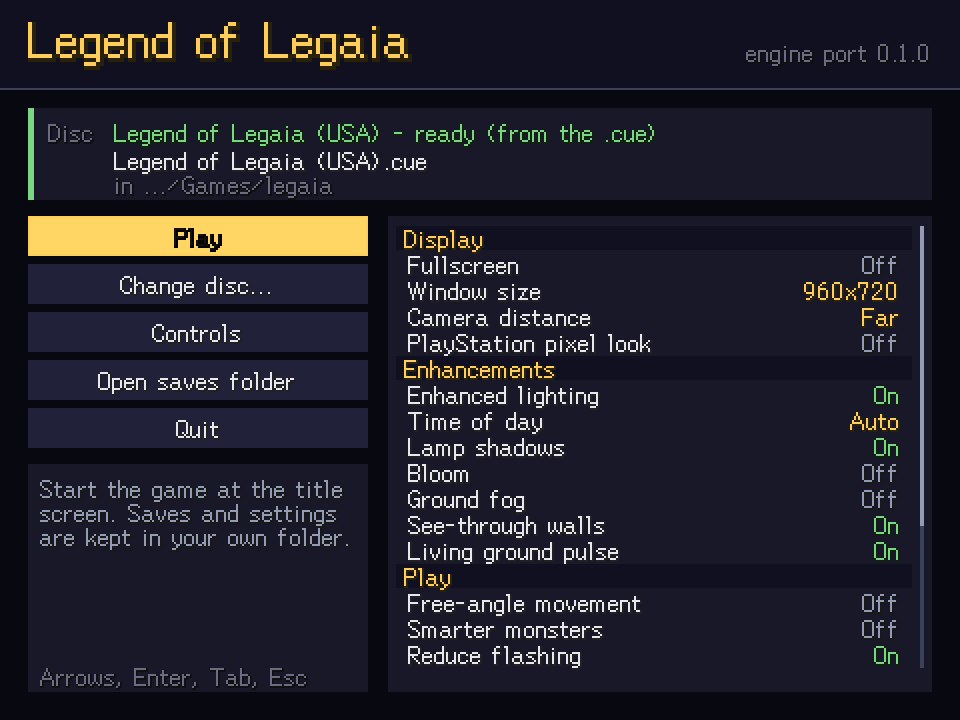
- Choose disc...Pick your
.binor.cue(Ctrl+O), drag it onto the window, or type its path. It is checked and remembered. - OptionsTurn the enhancements on or off before you start, in a scrolling list grouped as Display, Enhancements, Play, Sound and Original game; they are the same settings the in-game keys below change.
- PlayThe game opens on the title screen and the launcher closes.
The disc card at the top says whether the disc is ready, or what is wrong with it: moved, not a disc image, or another region's disc (a PAL or Japanese disc is refused; a randomized or translated USA disc is fine). The help box under the buttons explains whichever row is focused. The arrow keys move, Left / Right change an option, Enter presses, Esc quits; the mouse works too. Controls shows your key bindings, and Open saves folder opens the folder your saves and settings live in.
PlayStation pixel look adds the console's wobbling vertices and colour dithering; Original game only starts the game exactly as the original looks and moves - every enhancement off for that session, your settings kept for next time. If the game ever stops with an error, the launcher comes back and shows it.
Controls
The arrow keys are the D-pad. A gamepad works too, by button position (bottom / right / left / top face buttons are Cross / Circle / Square / Triangle), and either the D-pad or the left stick moves.
| Key | PlayStation button |
|---|---|
| Z | Cross |
| S | Circle |
| A | Triangle |
| X | Square |
| Q / W | L1 / R1 |
| 1 / 2 | L2 / R2 |
| Enter, Space | Start |
| Right Shift | Select |
Key Config on the in-game Options screen rebinds the keys. The mouse turns the camera: drag to orbit around your character, scroll to zoom, double-click to put the game's own framing back.
Esc twice quits. The first press only shows Press Esc again to quit at the bottom left, so a stray key does not lose an unsaved game; save in the game first.
Display toggles and the F12 panel
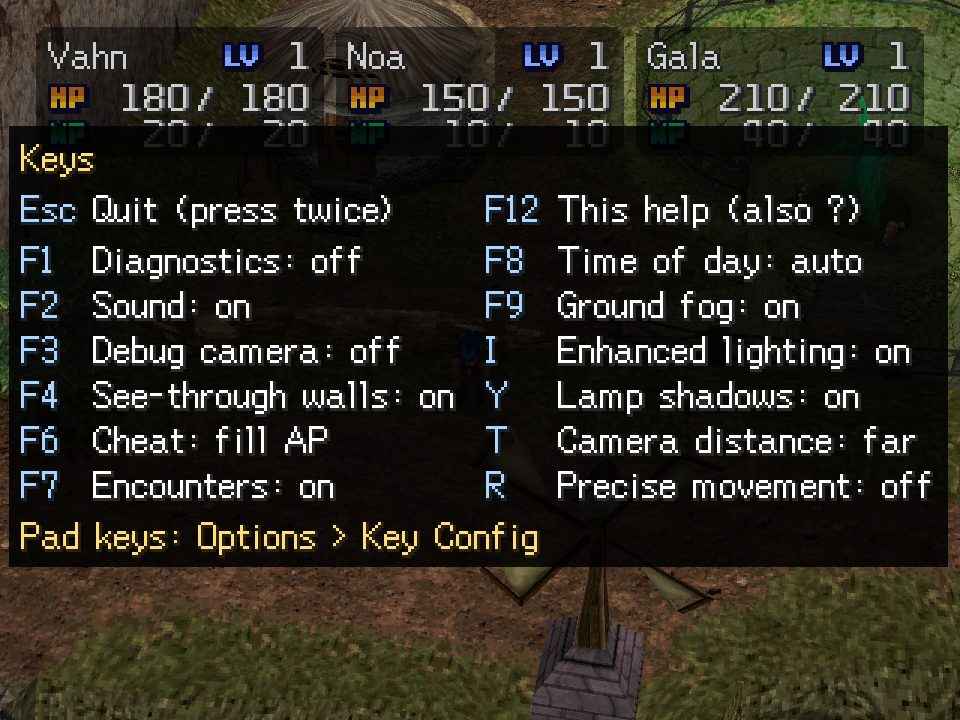
The port adds a few enhancements over the original, each on its own key (and on the launcher), each with the original look one press away. A press shows the toggle's new state at the bottom left for a moment. For its first few seconds the window says F12 or ? lists the keys in the same place, until you open the panel.
| Key | Toggle | Starts |
|---|---|---|
| I | Enhanced lighting: a time-of-day mood, real light at lamps, glowing props. Off is the game's own baked shading. | on |
| F8 | Lighting time of day: auto, day, dusk, night | auto |
| Y | Shadows from the enhanced lights | on |
| F4 | See-through walls between the camera and your character | on |
| F9 | Volumetric ground fog | off |
| F10 | Bloom: lamps, glowing props and bright sky glow softly | off |
| T | Camera distance: retail, far, farther | far |
| R | Free-angle movement instead of the original eight directions | off |
| F2 | Mute | off |
| F11, Alt+Enter | Fullscreen (the launcher also sets it, and the window size) | off |
The panel also lists a few keys for tinkering rather than playing: F1 diagnostic text, F3 a free debug camera, F6 to fill the AP gauge and F7 to switch random encounters off and on. The visual options (lighting and its time of day, lamp shadows, see-through walls, ground fog, bloom), camera distance, movement mode and fullscreen are remembered between sessions.
To play exactly as the original looks and moves, turn on Original game only in the launcher, or start with --retail: every enhancement off and every engine option at its original value for that session, without changing your saved options.
./legaia-engine play-window --disc "/path/to/Legend of Legaia (USA).bin" --boot-ui --retailWhere saves and settings live
Started by double-click or from Studio, the game keeps its files in your per-user folders, so they are the same however you start it:
| System | Disc choice (launcher.toml) | Saves, options, key bindings |
|---|---|---|
| Linux | ~/.config/legaia-engine | ~/.local/share/legaia-engine |
| Windows | %APPDATA%\legaia-engine | the same folder |
| macOS | ~/Library/Application Support/legaia-engine | the same folder |
Saves go to saves/memcard1.mcr, a standard PlayStation memory-card image that emulators read too; options to legaia-options.toml, key bindings to legaia-input.toml, and the log of the last launcher-started game to legaia-engine-game.log. A play-window run from a terminal keeps these three in the current directory instead, so run it from the same place each time (or pass --save-dir).
See also
- Getting started - the command-line tools from the same archive, and what an extraction writes.
- Extracting assets - one scenario per asset type, on the command line.
- Playing and viewing - every option of the port: scenes, battles on demand, cheats, movies, minigames, record and replay.
- Play in the browser - the same engine with nothing to install.